> ## Documentation Index
> Fetch the complete documentation index at: https://docs.darlinganalytics.ai/llms.txt
> Use this file to discover all available pages before exploring further.
# Integrating with Microsoft SQL Server
> Learn how to connect your Microsoft SQL Server database to Darling.
 ## Connecting to SQL Server
### Step 1
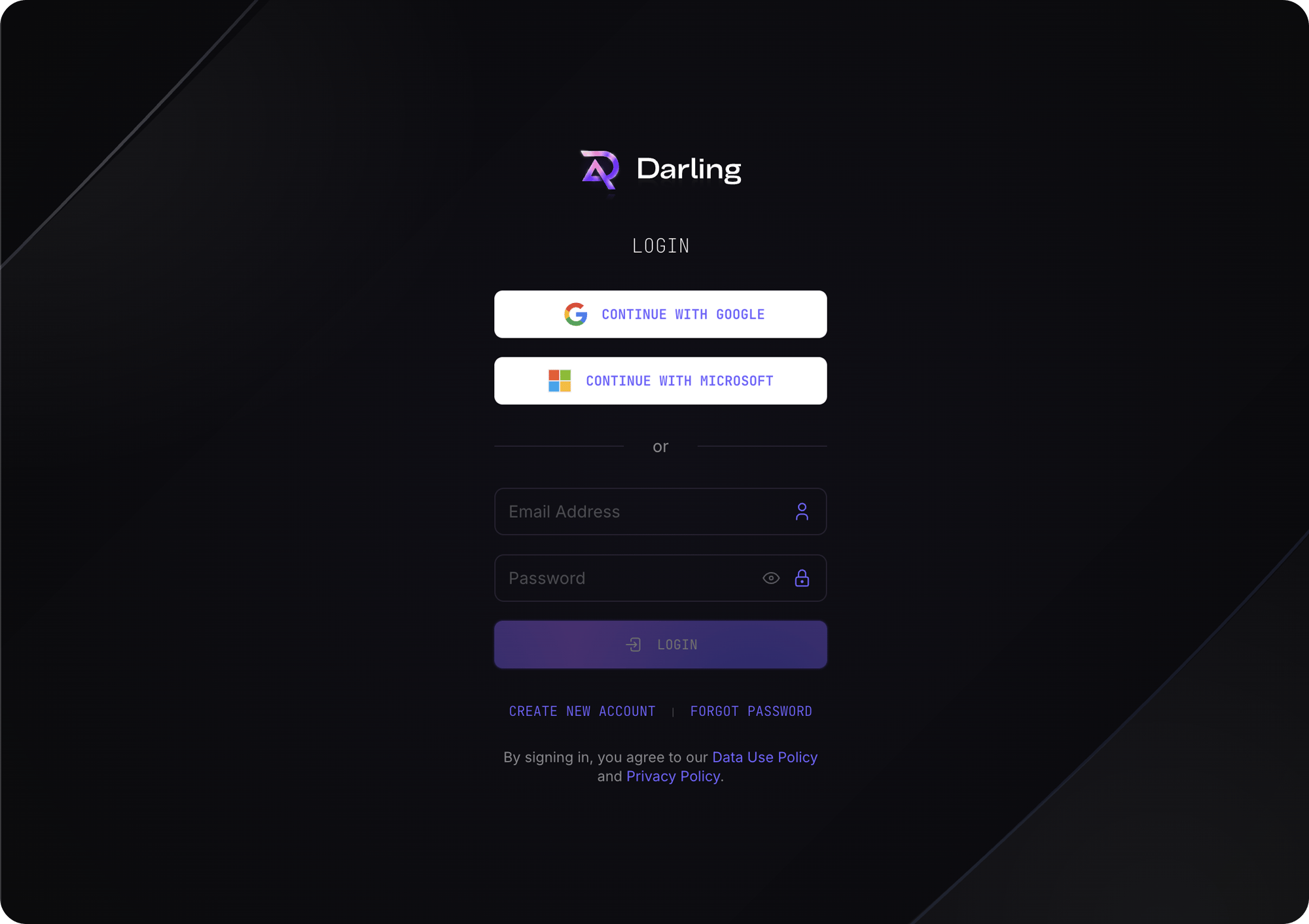
Sign in to your Darling account on the [dashboard](https://app.darlinganalytics.ai) page.
## Connecting to SQL Server
### Step 1
Sign in to your Darling account on the [dashboard](https://app.darlinganalytics.ai) page.
 ### Step 2
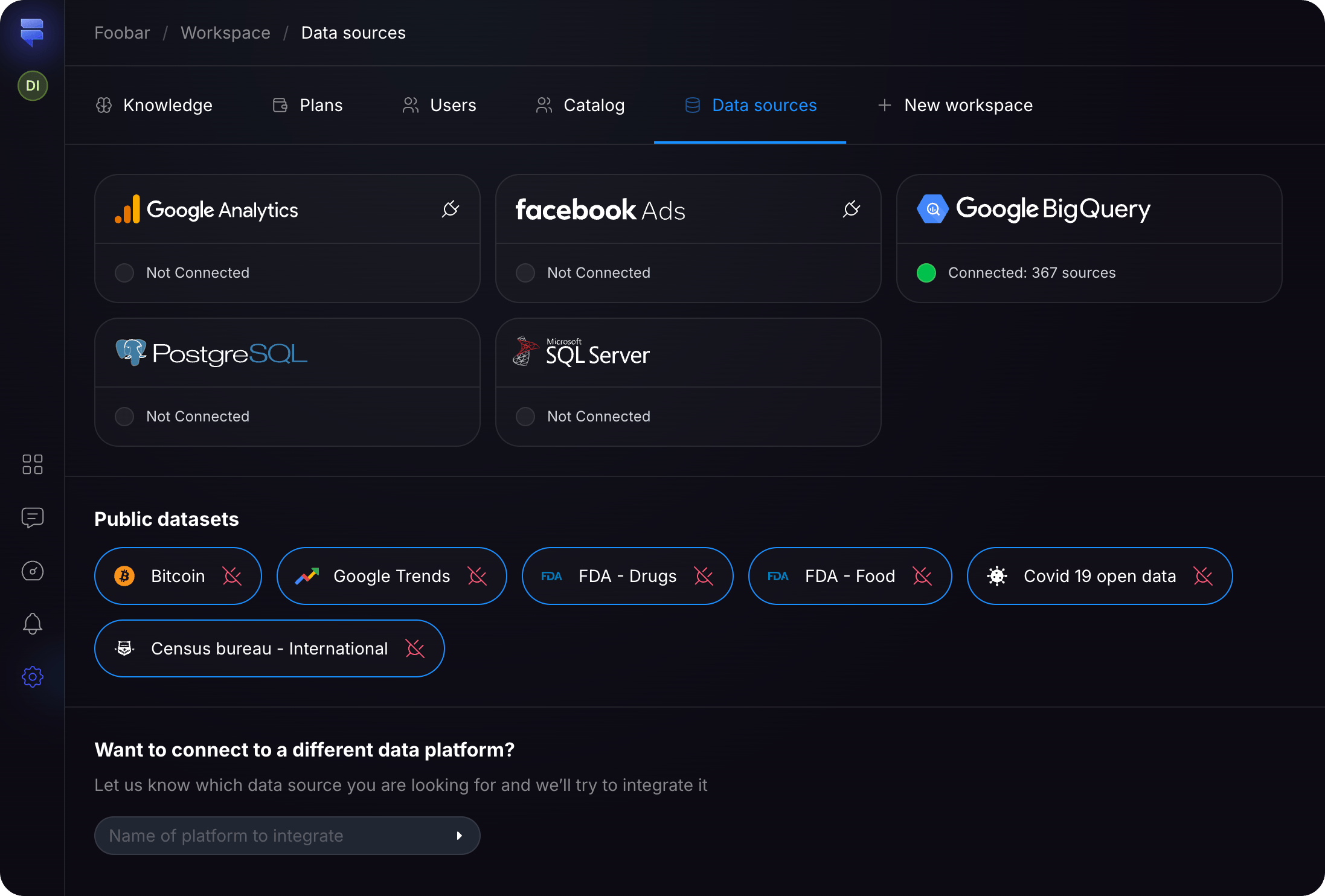
Navigate to the [Data Sources](https://app.darlinganalytics.ai/app/data-sources) page and click the **Microsoft SQL Server** card.
### Step 2
Navigate to the [Data Sources](https://app.darlinganalytics.ai/app/data-sources) page and click the **Microsoft SQL Server** card.
 ### Step 3
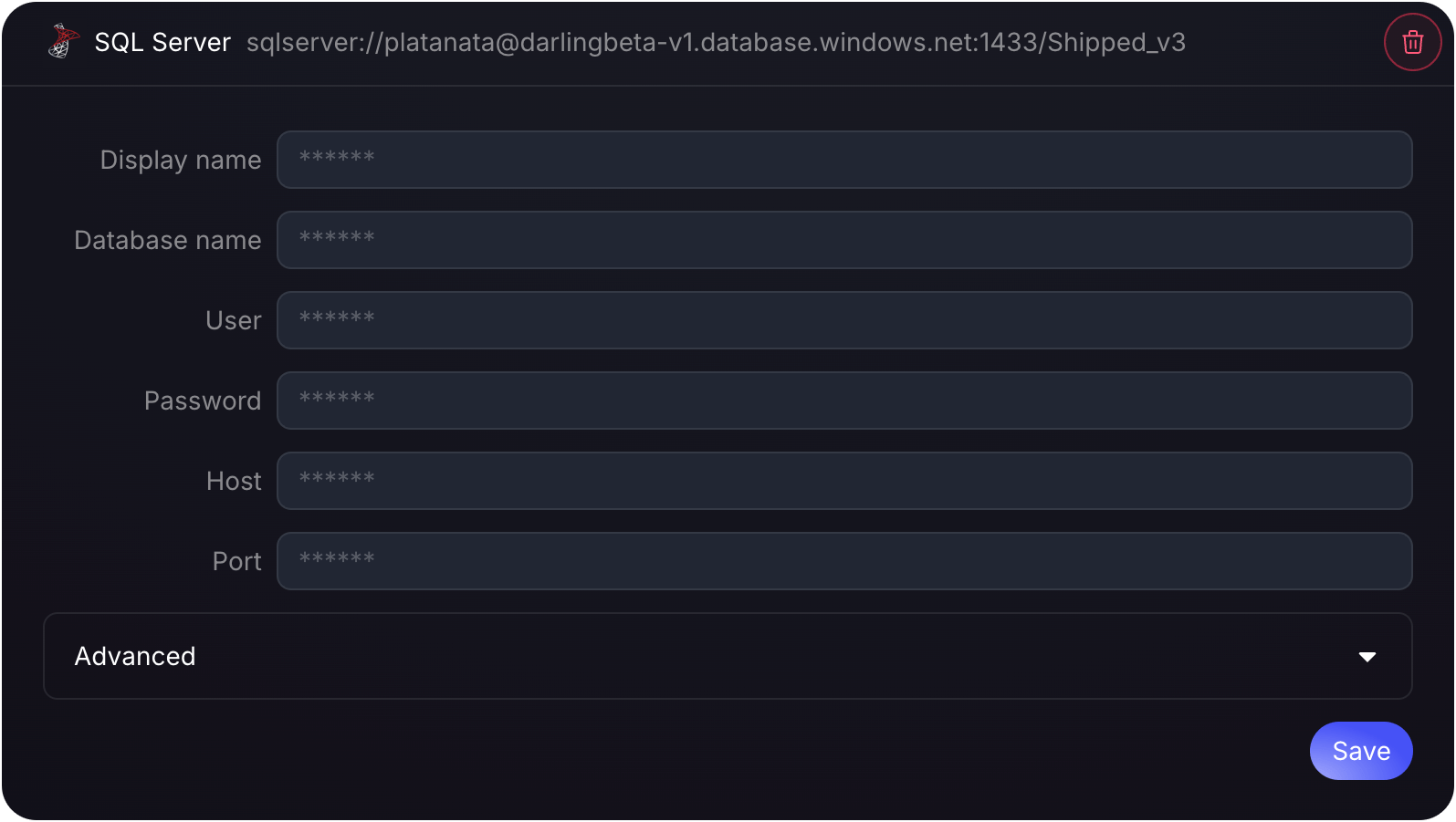
Enter your SQL Server connection details (host name, port, username, password, and database name). Once all fields are completed, click the **Connect** button.
### Step 3
Enter your SQL Server connection details (host name, port, username, password, and database name). Once all fields are completed, click the **Connect** button.
Ensure you test the connection before saving the configuration.
### Step 4
Once connected, you can begin configuring your semantic model, including measures, dimensions, and tables. [Learn more about defining measures](/docs/app/catalog/measures).
